
With WSL (Windows Subsystem for Linux) you already get an integrated Linux terminal inside Windows. However, I often prefer to use PuTTY as my terminal because I also use it to connect to other remote Linux distributions. This way, I can work with both local WSL and remote Linux systems through a single, familiar interface. Here are the steps to enable PuTTy \ openSSH in WSL.
1) Download PuTTy Download PuTTY - a free SSH and telnet client for Windows
2) Install on your Windows desktop then make sure port 22 is accessible. Port 22 will be open for local inbound connections if you are not running a windows ssh server on your desktop.
3) Install OpenSSH Server in WSL:
sudo apt update

sudo apt upgrade -y

sudo apt install openssh-server

4) Check to see if openssh is running, sudo service ssh status

5) Enable openssh, sudo service ssh start
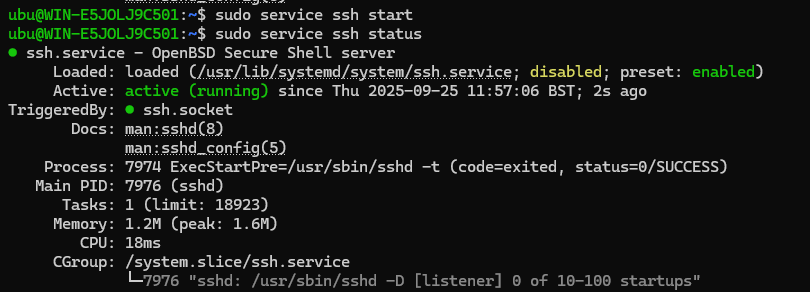
6) Open PuTTy and connect to local host (127.0.0.1), port 22
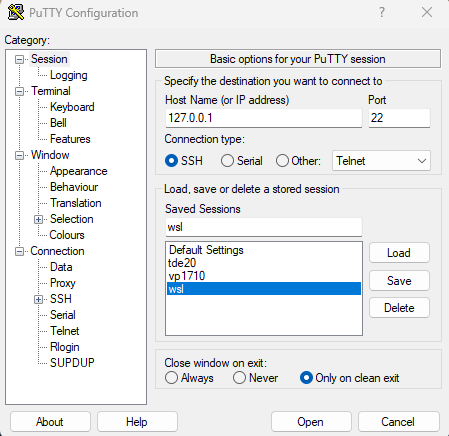
Click on open to use putty terminal with WSL on local host
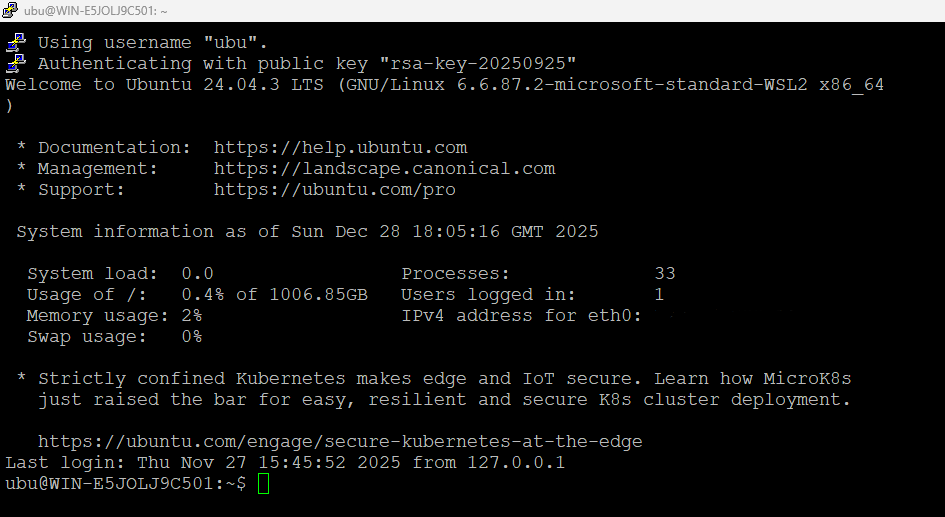
WSL putty Bash terminal session
