Linux is ubiquitous in modern development and production environments, so having a solid understanding of the Linux OS, its administration tasks and its developer tools is essential for technical roles. Historically, developers relied on dual-boot setups to switch between Windows and Linux. With WSL, Linux now runs as a subsystem on Windows, providing a full Linux environment without rebooting, virtual-machine overhead or the usual compatibility issues. It lets you use native Linux tools, shells and package managers directly from VS Code, while still taking advantage of the Windows desktop for everyday productivity. This creates a fast, convenient and production-like development workflow on a Windows machine.
Package managers make installing and updating software simple in a Linux environment, and many Linux-native tools are faster and more efficient than their Windows equivalents. With WSL, you get the best of both worlds: a realistic Linux development environment and a cleaner, more streamlined Windows desktop
Here are the steps I took to enable C++ in Visual Studio Code with Windows Sub System for Linux .
Download an install Visual Studio Code, Download Visual Studio Code - Mac, Linux, Windows
Install the WSL extensions in Visual Studio Code
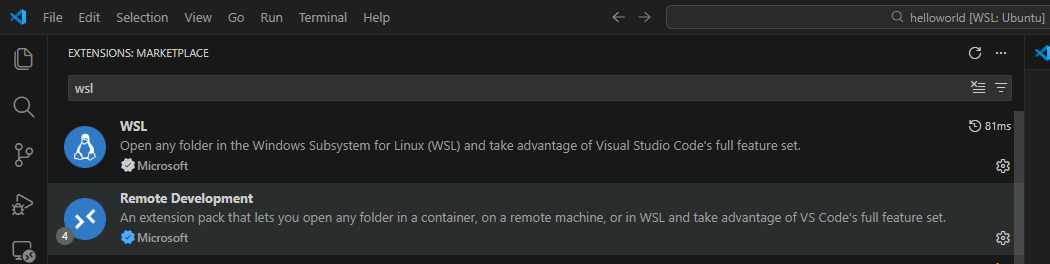
In the WSL Terminal
Update the packager manager, sudo apt-get update
install the GNU compiler tools and the GDB debugger by typing: sudo apt-get install build-essential gdb
Verify that the install succeeded by locating g++ and gdb from the Linux (WSL) command line using the commands whereis g++ whereis gdb
You can now use a Linux terminal and bash to invoke VS Code from WSL, making for a flexible Linux development environment fully integrated with Windows and better aligned with how applications are typically developed then deployed and run in production.
